Getting Started
Theme Installation
Upload the theme ZIP file
First, you must upload the theme ZIP file you received after purchase. Follow the steps below to upload and activate the theme:
- Log in to Ghost admin
- Click on Settings in the left sidebar
- Next, look for the Theme settings and click on it
- Then click on Change theme
- Next, click on Upload theme in the top right corner and select the theme ZIP file
- Once the upload is completed, click on Activate
Upload the routes.yaml file
Configuring the routes.yaml file is required for the theme to work properly. Follow the steps below to set it up:
- Unzip the theme ZIP file and locate the
routes.yamlfile inside the theme folder - Log in to Ghost Admin
- Click on Settings in the left sidebar
- Next, look for the Labs settings and click on it
- Click Open and under the Routes section, click on Upload routes file
- Select and upload the
routes.yamlfile located in the theme root folder

This file automatically defines the following routes and collections:
/— Landing page/courses/— Courses page/blog/— Blog page/newsletter/— Newsletter page/docs/— Help center & docs page/showcase/— Showcase page/feed/— Feed page/tags/— Tags archive/authors/— Authors archive/contact/— Contact page
routes.yaml file is a required step, without it the theme will not work properly.
Design considerations
Ghost provides design setup under Settings > Design & branding.
There are two main sections under these settings:
- Brand: those are the default design settings provided by Ghost
- Theme: design settings provided by the theme
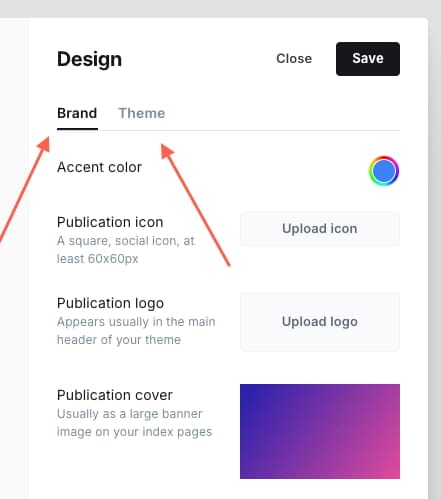
Keep the following points in mind to ensure your site works seamlessly on both dark and light modes:
Logos
Light theme logo: the logo uploaded in Brand > Publication logo will be used for the website’s light theme. It will also be used in the Ghost Portal and emails, since both use a light theme.
Dark theme logo: the logo uploaded in Theme > Dark theme logo will be used only for the website’s dark theme.
Accent color
Light theme color: the color set in Brand > Accent color will be used for the website’s light theme. It will also be used in the Ghost Portal and emails, since both use a light theme.
Dark theme color: the color set in Theme > Dark theme accent color will be used only for the website’s dark theme.
Typography
We recommend not changing the default typography settings under the Brand section. Instead, use the ones under the Theme section: Body font & Headings font.